How Existing users Accept Invitations on the Orixe Platform
1. Accepting a Connection Via Client ID Request
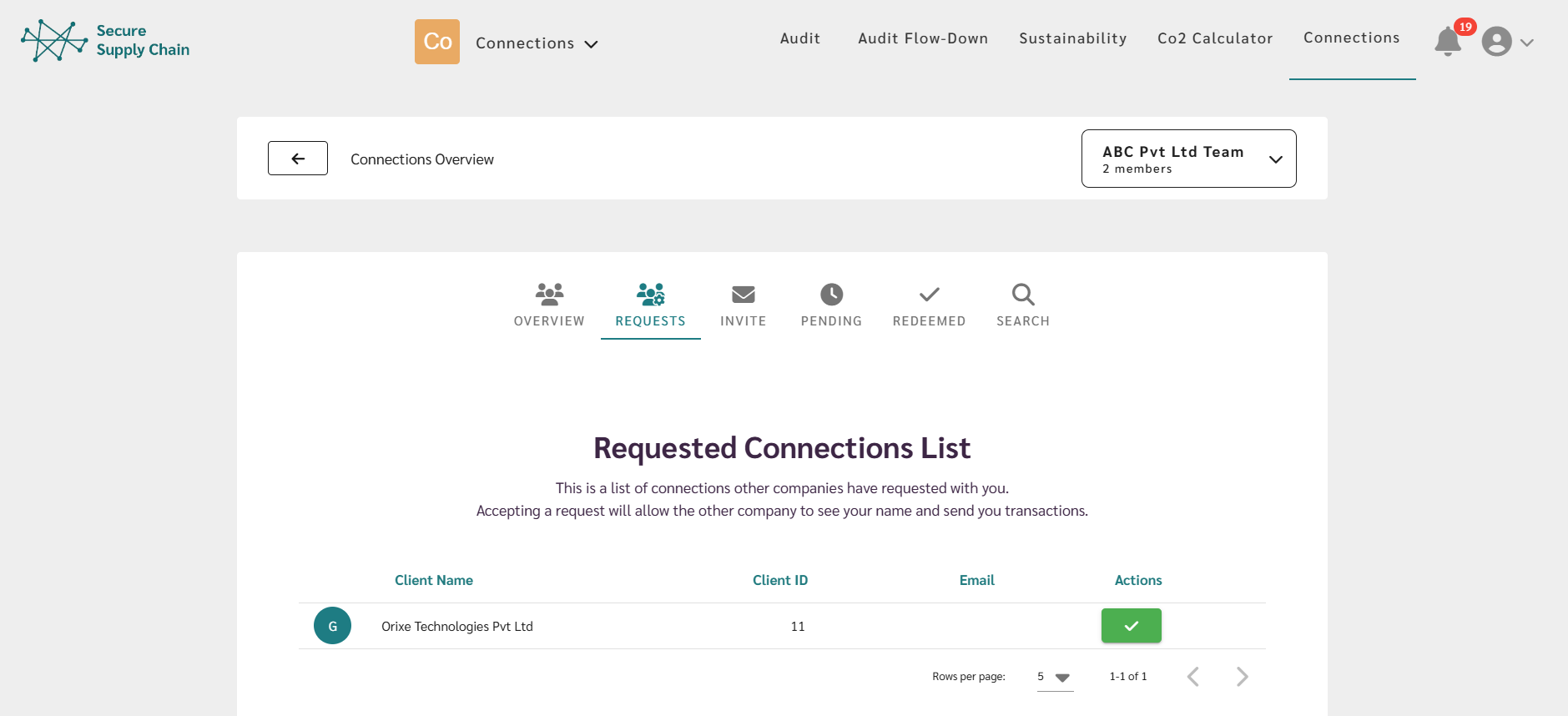
If a buyer added you using your Client ID, you will receive a normal connection request.
- Go to your ‘Connections’ tab’.
- Click on the ‘Requests’ tab.
- In the Requested Connections List, you will see the buyer’s company name.
- Click ‘Accept’.
Once accepted, the connection is created automatically.

2. Accepting a Connection Via Invitation Code
If the buyer sent you an Invitation Code, here’s how you redeem it:
- Go to your ‘Connections’ tab’.
- Open the ‘Requests’ tab.
- Scroll down until you see the Invitation Code search bar.
- Enter the Invitation Code you received.
- Click ‘Redeem’.
Once done, you will be connected with the buyer’s company.

3. Accept a Connection Sent by Company Name Search
- Go to the Connections module.
- Open the Requests tab.
- Check the Requested Connections List (this is where received requests appear).
- Find the buyer’s company name.
- Click the green tick to accept.
You are now connected with the company.