How to send Connection Requests to Existing Users in the Platform
There are three ways to make connections with existing users.
1. Connect via Client ID
If you already know the Client ID (The ID that existing users in the platform have) of the supplier you want to connect with, you can easily add them this way:
- Click on the ‘Connections tab’ in your dashboard.
- Click on the ‘Requests button’.
- Scroll down a little, you’ll find a search bar for Client ID.
- Enter the ‘Client ID’ of the supplier you wish to add.
- Click on the ‘Add Connection' button next to the search bar.
Once done, a connection request will be sent to the supplier.

2. Connect via Invitation Code
You can also invite a supplier by generating a unique invitation code and sharing it directly with them.
- Click on the ‘Connections tab’ in your dashboard and go to the ‘Invite tab’.
- Click the ‘Invite Supplier' button.
- The Invite Supplier form will appear. Fill out the fields.
- Click ‘Create’.
- You’ll be redirected to the invitation page.
- Copy only the ‘Invite Code’ displayed there.
- Send this code to your supplier via email.
The supplier will redeem this code on their side.

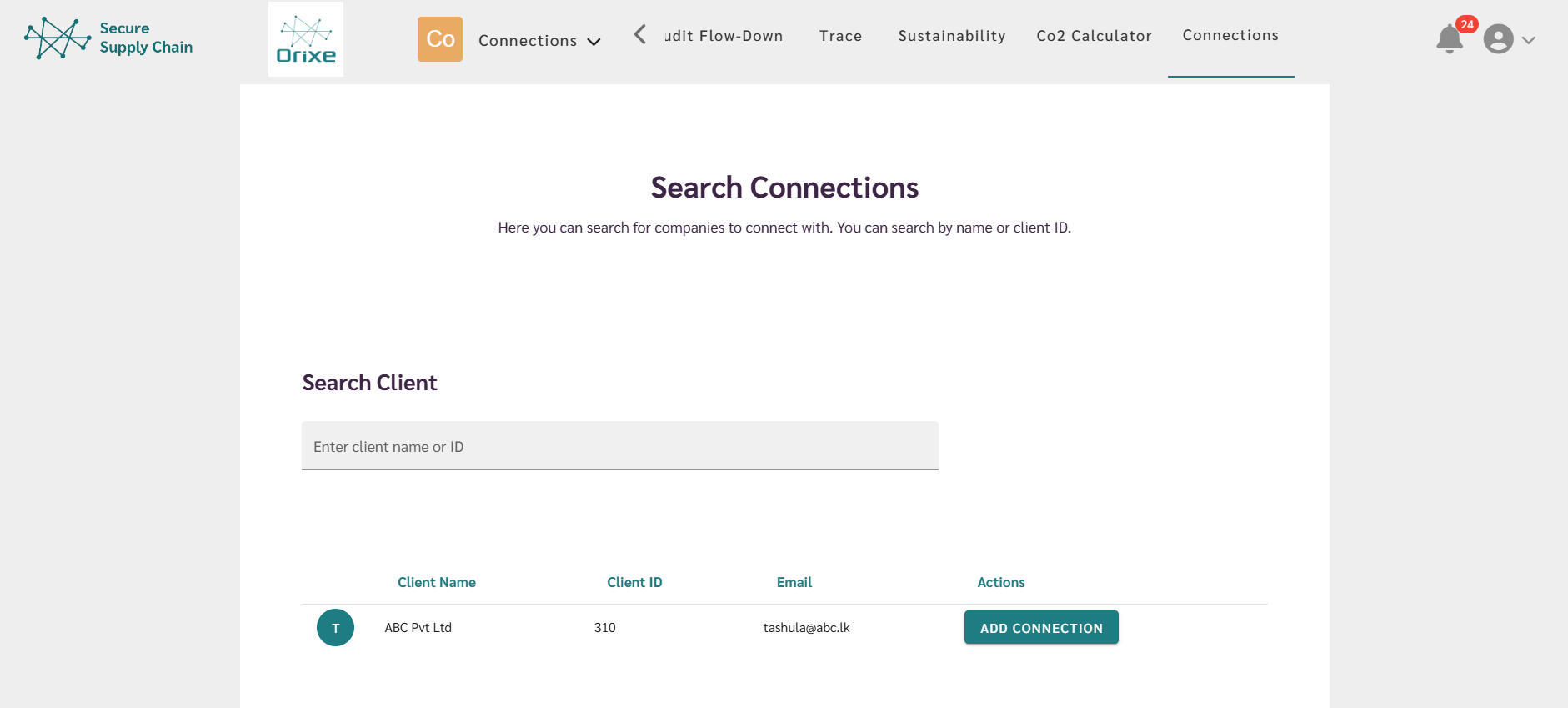
3. Connect by Searching the Company Name
This method is useful if you do not know the Client ID or Invitation Code.
- Go to the Connections module.
- Open the Search tab.
- Type the company name in the search bar.
- A list of companies with matching names will appear.
- Select the correct company and click Add Connection.
Your connection request is now sent.