By clicking “Accept All Cookies”, you agree to the storing of cookies on your device to enhance site navigation, analyze site usage, and assist in our marketing efforts. View our Privacy Policy for more information.

How to Perform an Onsite Audit

The Orixe On-Site Audit Module is designed to help companies efficiently plan, conduct, and manage on-site audits of their suppliers. This module streamlines the entire audit process from creating and approving audit templates, scheduling site visits, recording findings, to assessing corrective actions by clearly defining the roles of the Initiator, On-Site Auditor, and Supplier. These step-by-step guidelines will walk you through the full audit workflow, ensuring accuracy, transparency, and compliance throughout the process.

Roles in On-site Audit

Initiator

The initiator is the person from a company who wants to audit their supplier. The initiator is responsible for creating audit templates, sending them for approval, assigning auditors, and tracking the entire audit process until completion.

Required Role:

  • On-site Audit Initiator
  • Audit Approver

Tabs They Work In:

  • Initiator Dashboard
    (For the initiator to track and manage all audits from initiation to completion)
  • Initiator View
    (Stores all audits)
  • Templates Tab
    (To create, edit, and manage templates)

on-site auditor

The auditor can either be internal (from the initiator’s company) or external (from another company). Auditors are responsible for reviewing and approving audit templates, scheduling and performing audits, and filling in audit results.

Required Role:

  • On-site Auditor

Tabs They Work In:

  • On-site Auditor View

supplier

The supplier is the company being audited. Their role is to provide the necessary information and evidence for the audit and to act on non-conformities and improvements identified during the audit process.


* No specific platform role required.


Tabs They Work In:

  • Supplier View
Step 1: Initiator Sends Onsite Audit Template to Auditor for Approval

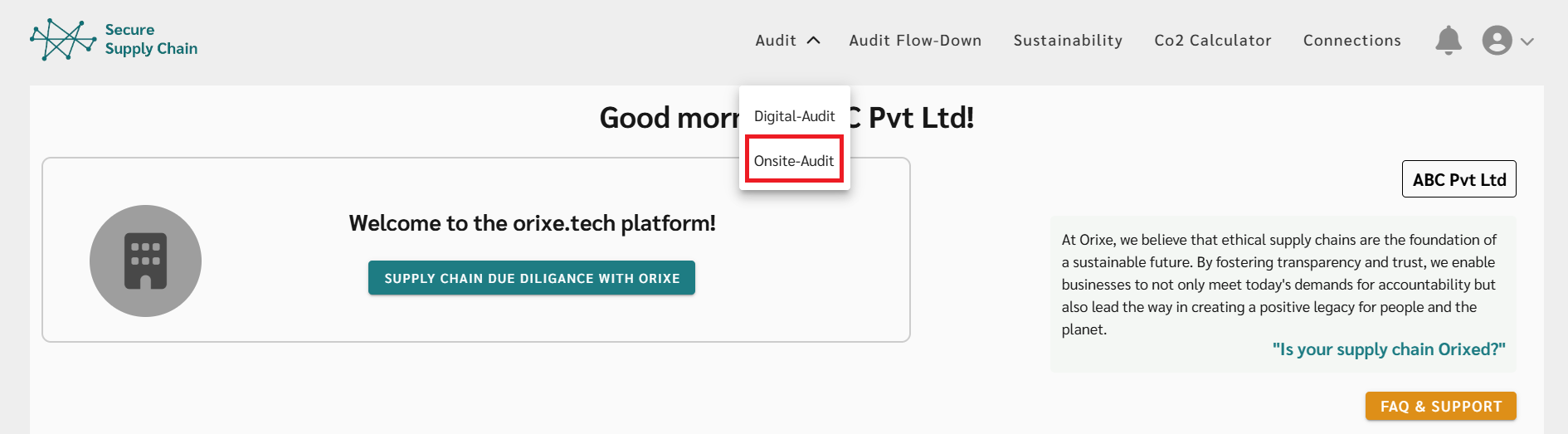
  • Go to the On-site Audit Module in Orixe platform.
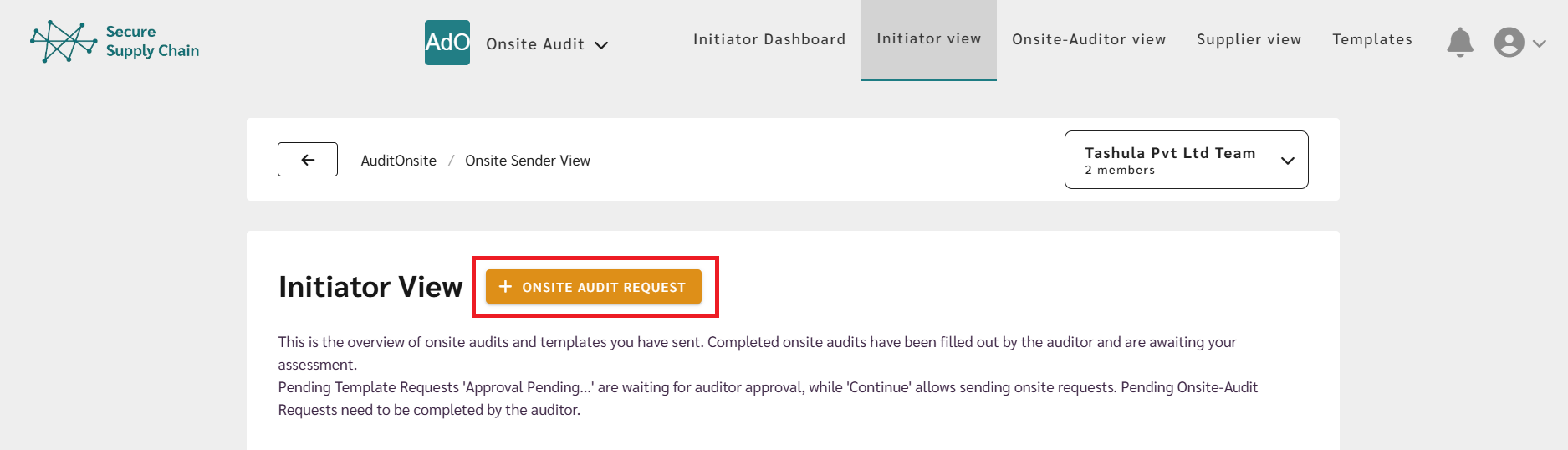
  • The initiator goes to the Initiator View tab and clicks the Onsite Audit Request button to send an audit template for approval.
  • Next, the initiator must select an auditor, which can be internal or external. Both must have the Onsite Auditor role.
  • If selecting an internal auditor, the initiator can either assign themselves or a teammate who has the 'Onsite Auditor' role.
  • If selecting an external auditor, there are two options:

    Choose existing external auditors: Select an auditor already registered on Orixe and connected to the initiator’s company.
    ●  Invite new external auditors: Generate an invite code by entering the auditor’s name and selecting an expiry date for the link. Copy the generated snippet and send it via email to the external auditor.
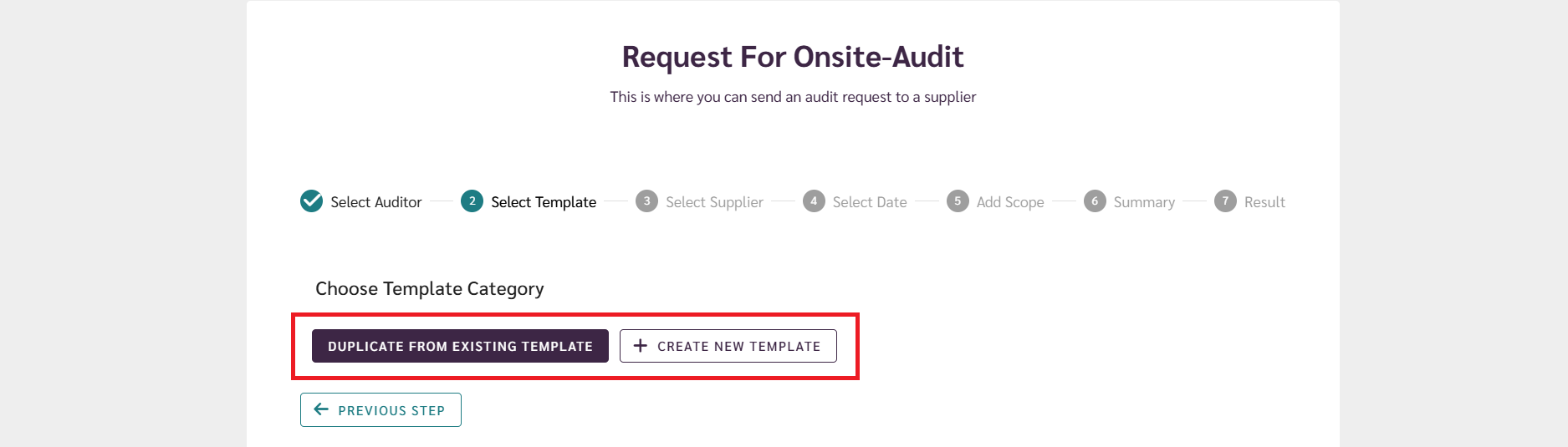
  • After selecting the auditor, the initiator must duplicate or create a new on-site audit template:

    Duplicate from existing template :
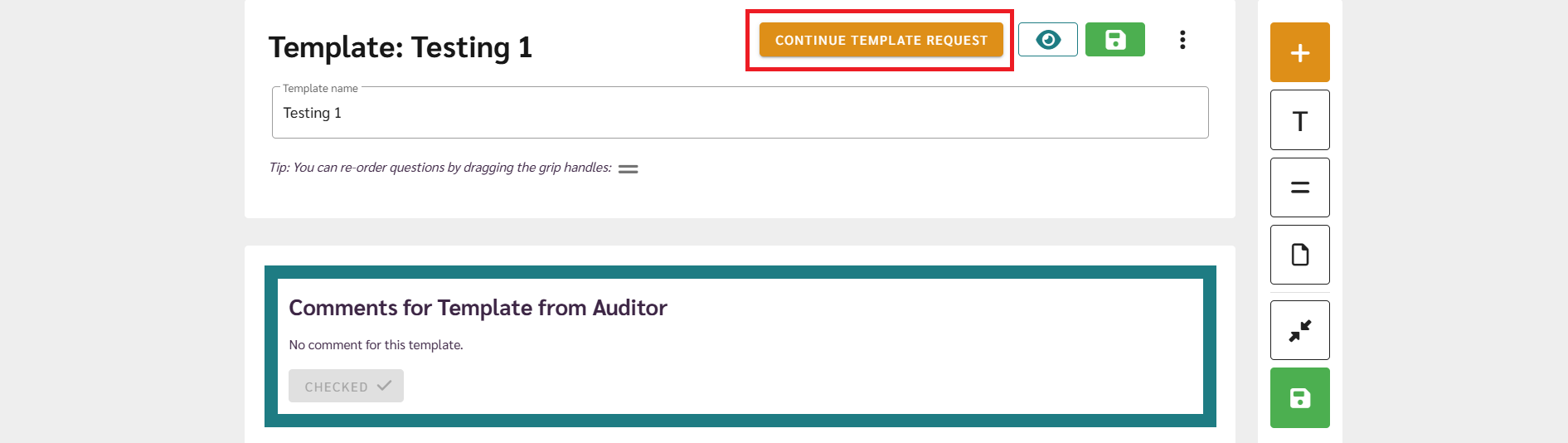
    Select an approved template, preview and duplicate it, edit as needed, and click Continue Template Request.
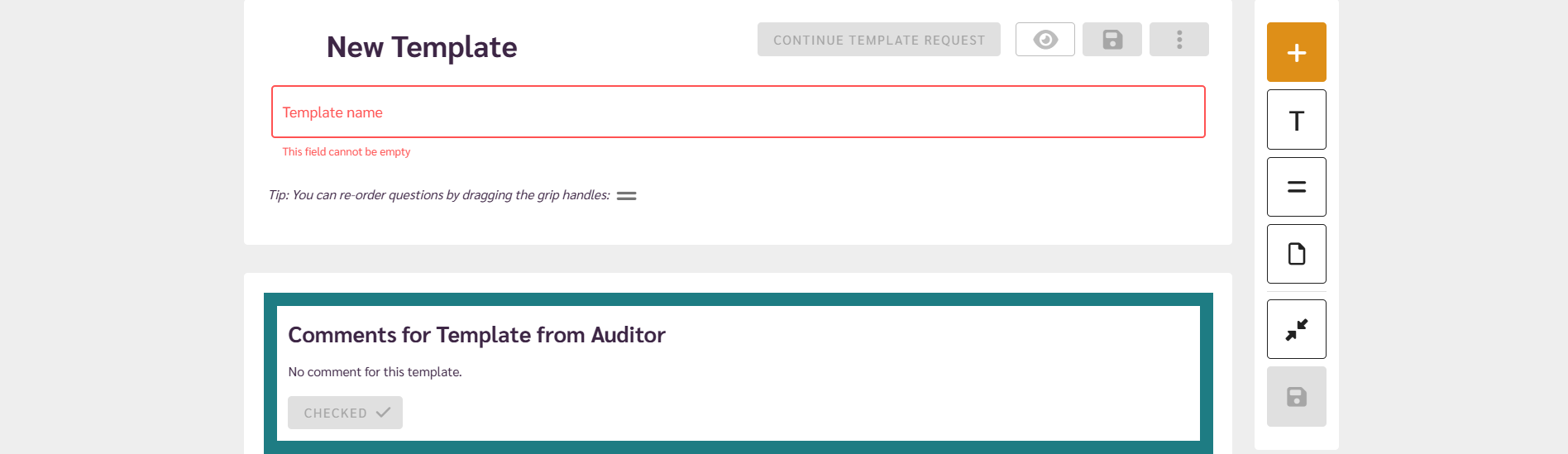
    Create a new template :
    Provide a template name, add questions, and select the appropriate question format:

    - Multiple Choice : Supplier selects one answer from predefined options.
    - Multiple Answers : Supplier selects multiple answers from predefined options.
    - Single Answer : Supplier can freely type a response.
    - Upload File : Supplier can upload supporting files.
  • Other template functions include:
    Title: Add headings or subheadings to sections.
    Spacer: Add spacing between questions or sections.
    Attachment: Attach files for suppliers to download.
  • The initiator should regularly save the template while editing. Use the Preview Template function to see how it will appear to the supplier. Once complete, click Save, then Continue Template Request, and finally Submit.
  • The template is now sent to the auditor for approval, and the initiator waits for either approval or comments.

Step 2: Onsite Auditor Reviews and Approves the Template

  • The auditor receives a notification once the initiator sends the audit template. If the auditor is external and not registered, they must register first.
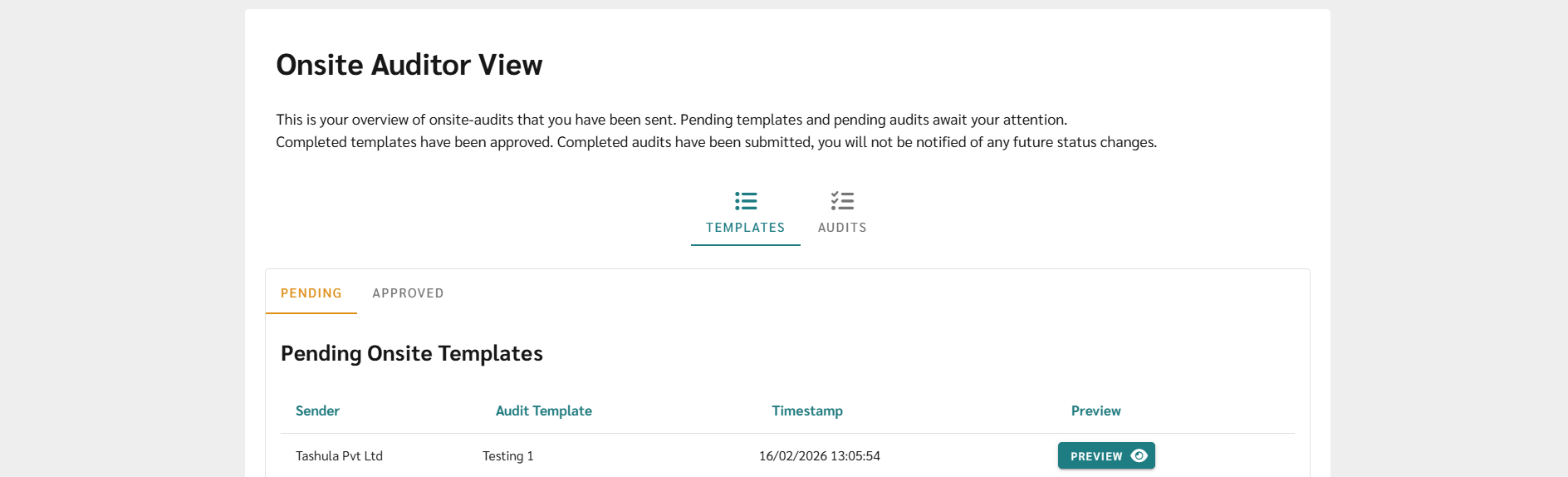
  • Click the notification to be directed to the Onsite Auditor View tab.
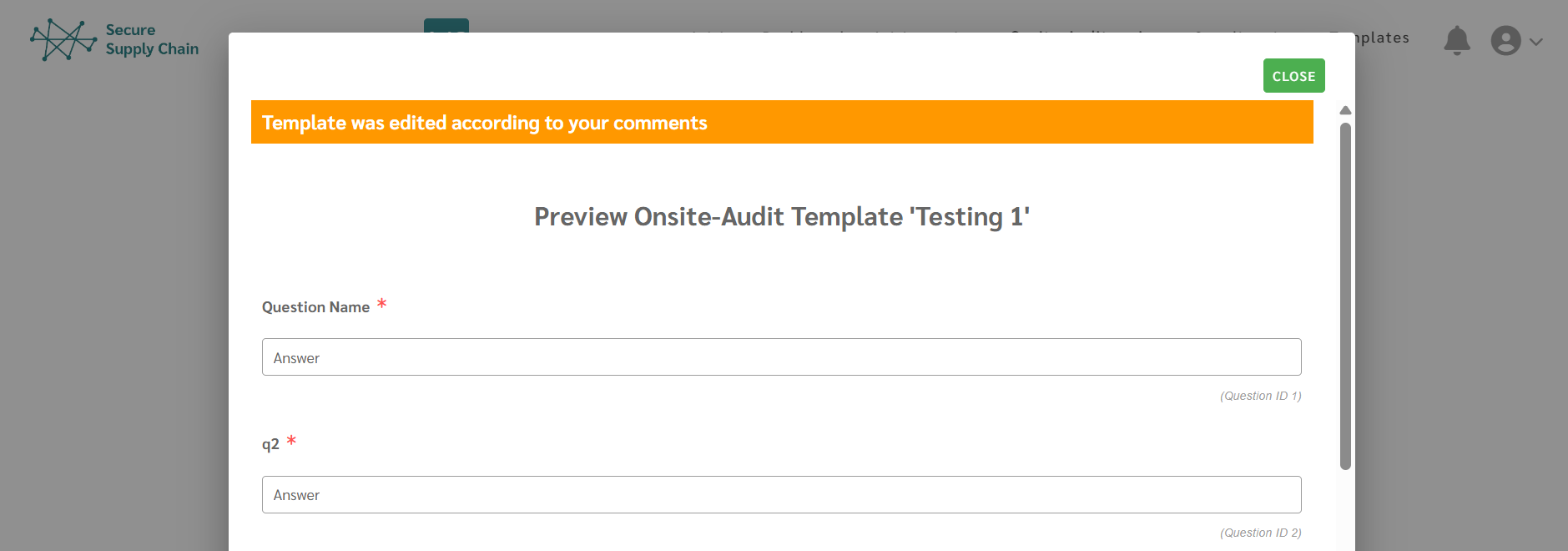
  • Under the Pending tab in the templates table, locate the audit template. Click Preview to review its contents.
  • Review the template carefully and determine if any changes are required.
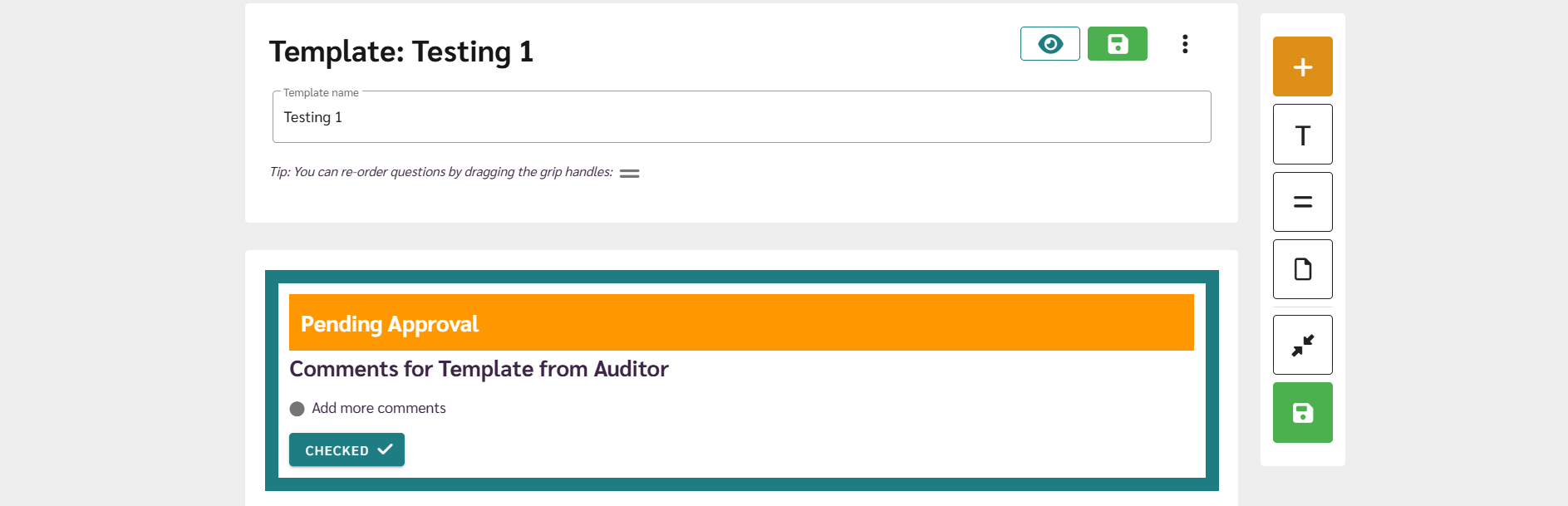
  • If changes are needed, add comments in the Comments Section and click Save Comments. The template is returned to the initiator for modification.
  • If the template is correct, click Approve. The template is sent back to the initiator as approved.

Step 3: Initiator Makes Changes Based on Auditor Comments

  • When the auditor adds comments, the initiator receives a notification.
  • Click the notification or navigate to the Templates Tab in Initiator View to find the template.
  • Open the template and carefully review the auditor’s comments.
  • Make the necessary changes to the template.
  • After making changes, click Save, then click the Checked button to indicate the template has been updated.

Step 4: Auditor Approves the Final Template

  • The auditor receives a notification after the initiator has updated the template.
  • Click the notification to go to the Onsite Auditor View tab.
  • Locate the relevant audit in the Pending tab of the templates table and click Preview.
  • Review the updated template to ensure all changes requested have been addressed.
  • Click Approve. The template will now move from the Pending tab to the Approved tab.

Step 5: Initiator Sends the Actual Onsite Audit Request

  • The initiator receives a notification that the template has been approved.

  • Click the notification or navigate to Initiator Dashboard, under Pending Requests tab, or find the template in Initiator View > Pending Tab > Pending Template Requests Table. Click Continue.
  • Select a supplier:
    Existing Supplier: Select from the list of registered users of the supplier company.
    New Supplier: Click 'Invite New Supplier', enter the name, choose an expiry date, copy the generated snippet, and send it via email.
  • Schedule the audit by selecting a specific date or date range, then click Next.
  • Add the Objective and Scope, specify Standards or Key Inspection Points, then click Next.
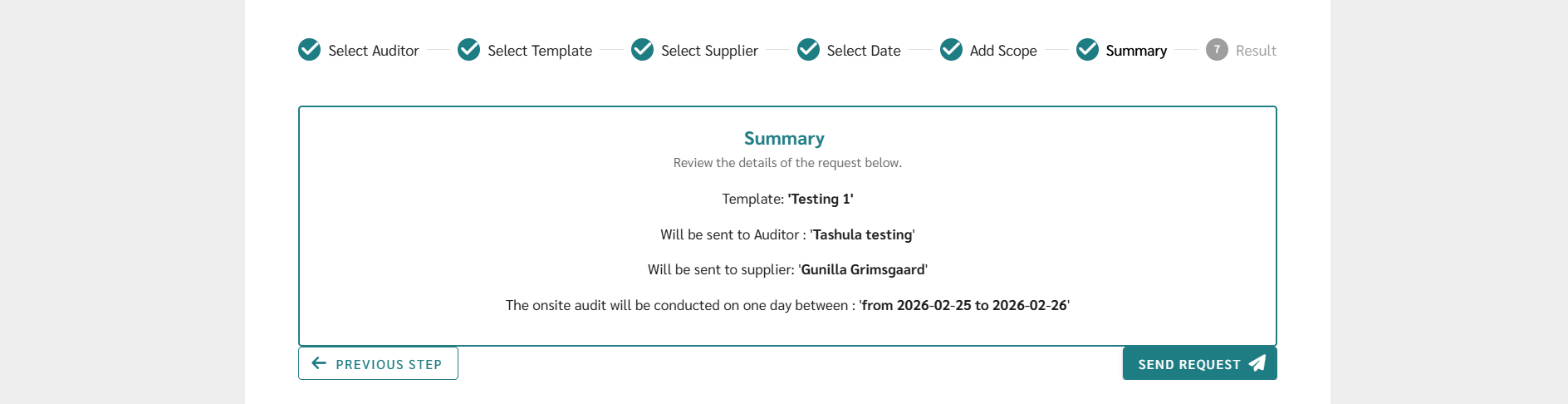
  • Review the Summary and click Send Request. The request is now sent to both the auditor and supplier.

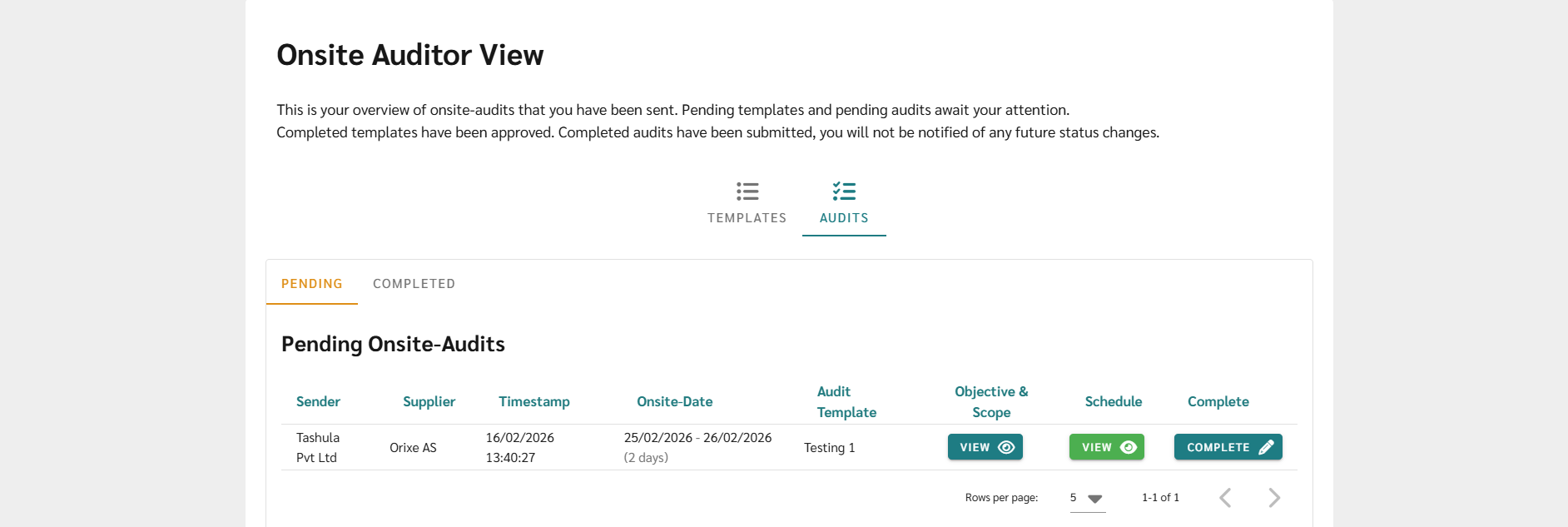
Step 6: Auditor Receives Audit and Schedules the dates

  • The auditor receives a notification that the audit has been assigned.
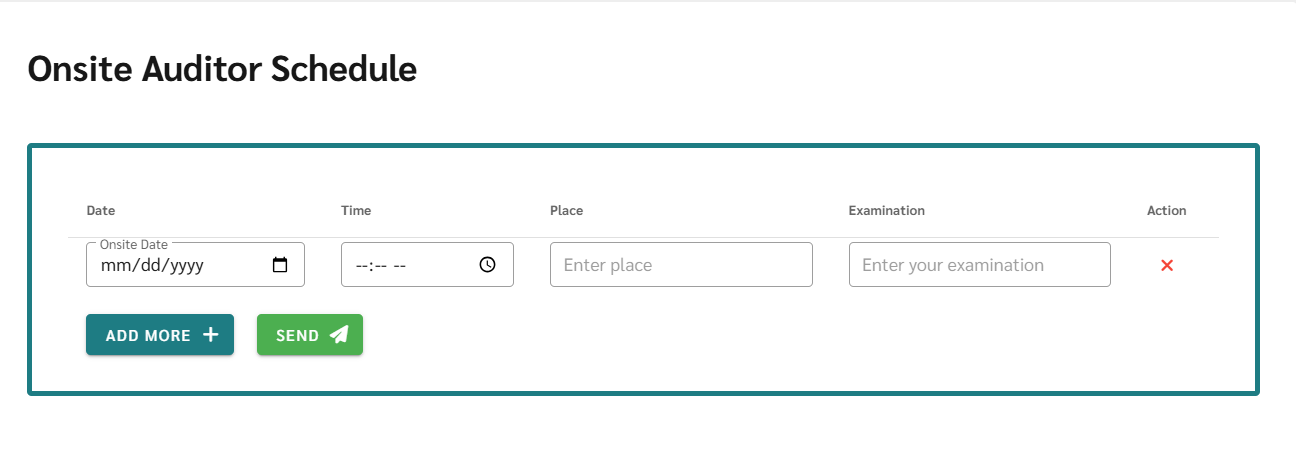
  • Before visiting the site, the auditor can create a schedule for the supplier to know the exact audit dates and times.
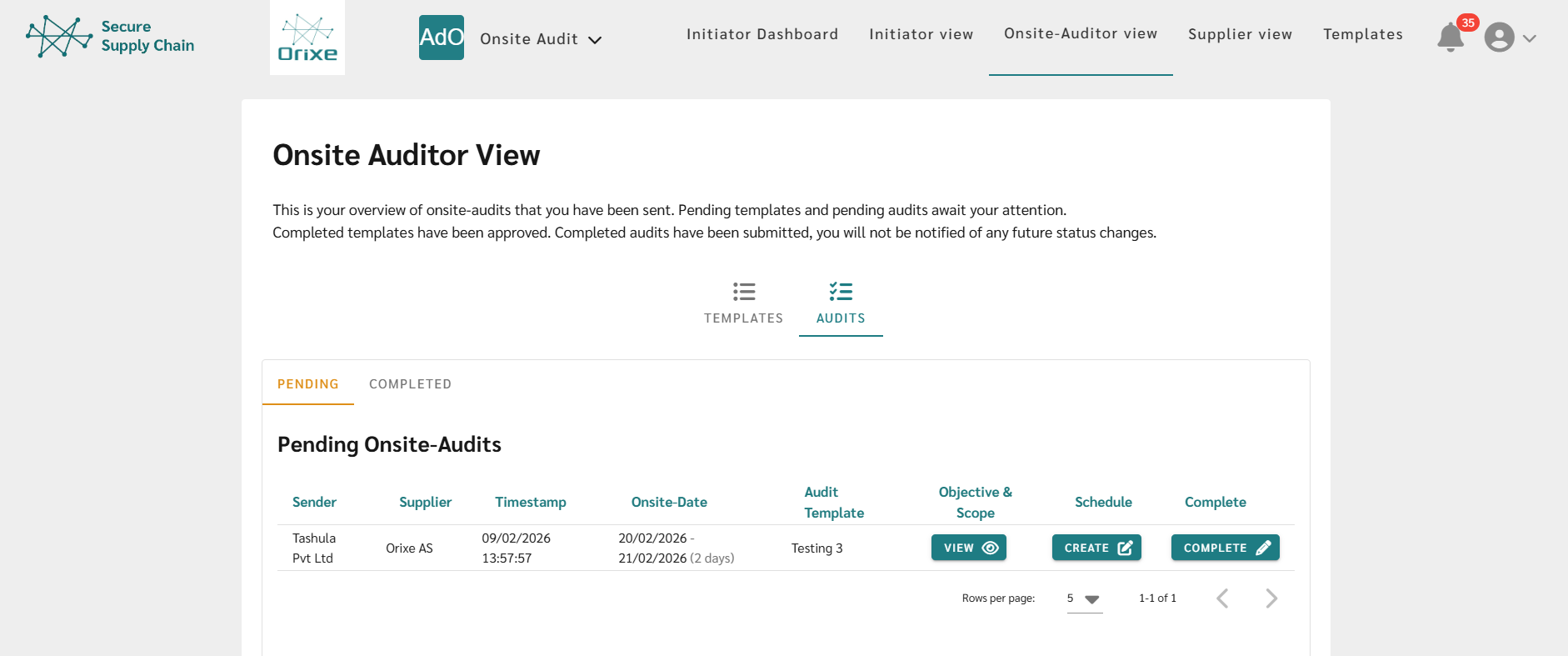
  • Go to Onsite Auditor View > Audit Tab > Pending Table, locate the audit, and click Create under the Schedule column.
  • Add the dates and times for the site visit and share it with the supplier.

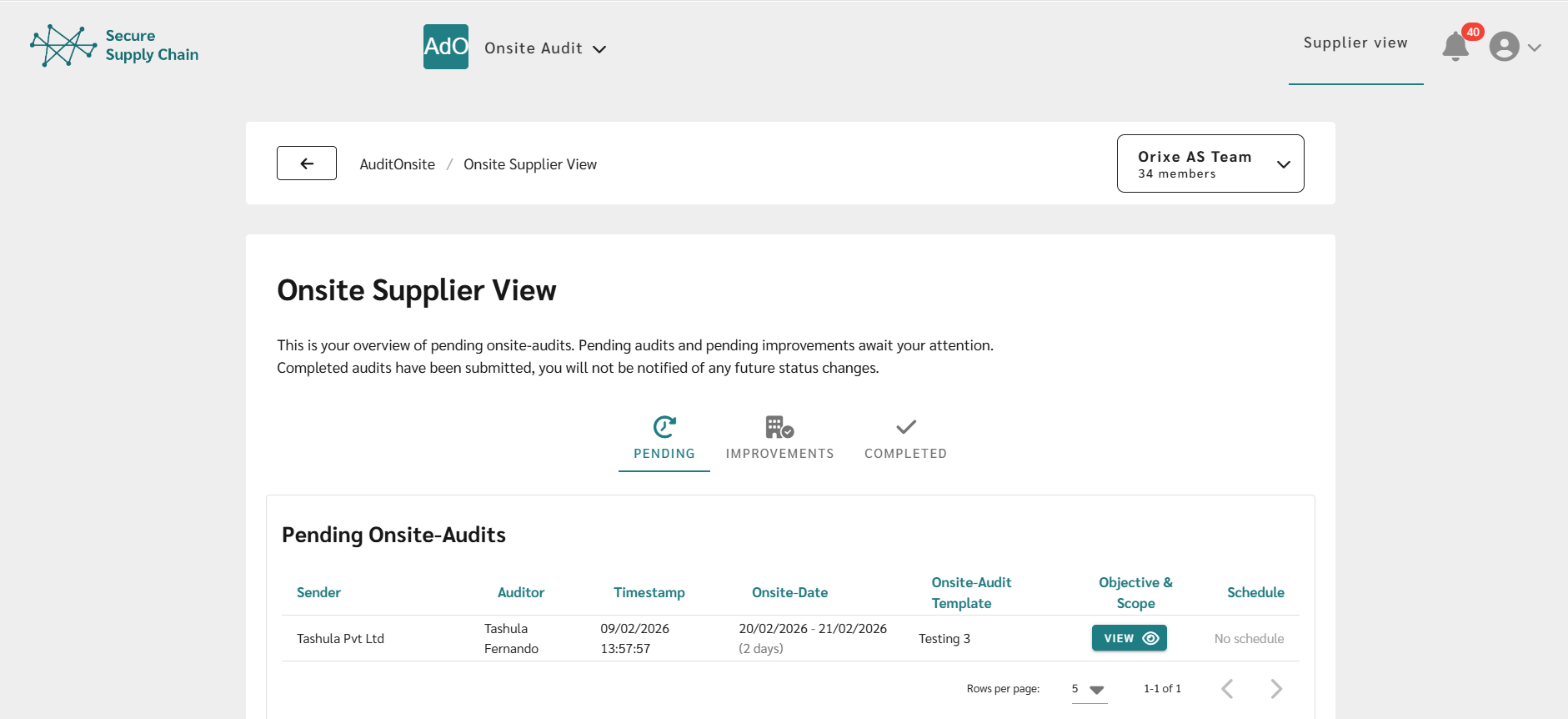
Step 7: Supplier Receives the Audit

  • The supplier receives a notification that an audit request has been sent.
  • Navigate to Supplier View to see the notification.
  • Suppliers cannot open the audit template. They can only see the scope of the audit and the auditor’s schedule.

Step 8: Onsite Auditor Completes the Audit

  • After visiting the premises, the auditor goes to Onsite Auditor View > Audit Tab > Pending Table and finds the assigned audit.
  • Under the Complete column, click Complete to start filling out the audit form.
  • Enter the audit results, non-conformities, improvements, and deadlines.
  • Once submitted, the form cannot be edited. The auditor’s duty is complete.
  • The auditor receives a notification once the supplier completes the required improvements. The audit moves from Pending to Completed in the auditor’s view.

Step 9: Initiator Waits for Supplier Completion

  • After the auditor submits the audit, the initiator is notified.
  • In Initiator View > Completed Tab > Not Assessed Table, the filled audit is visible.
  • The initiator cannot assess the audit until the supplier completes the non-conformities and improvements.

Step 10: Supplier Works on Non-Conformities and Improvements

  • The supplier receives a notification after the auditor completes the audit.
  • Go to Supplier View > Improvements Tab, locate the audit in the Pending Table, and click Complete.
  • The supplier can only see the non-conformities and improvements; audit questions and answers remain hidden.
  • Once necessary actions are taken, attach proof and submit.
  • The audit moves from Improvements Tab to Completed Tab, marking the supplier’s role as complete.

Step 11: Initiator Assesses the Audit

  • The initiator receives a notification once the supplier completes improvements.
  • In Initiator Dashboard > Audits to Assess Table, locate the audit and click Awaiting Assess.
  • Review the audit, check non-conformities, improvements, and all relevant details.
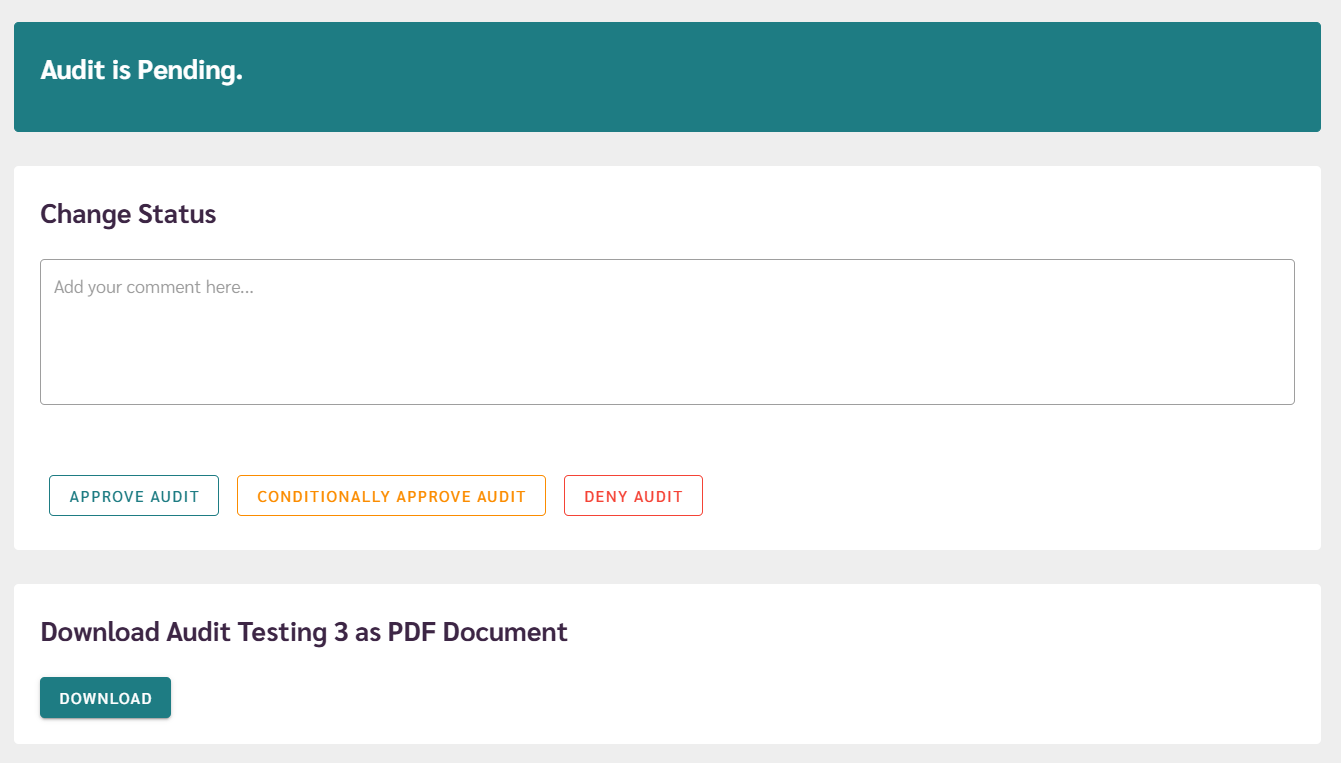
  • Choose to Approve, Conditionally Approve, or Deny the audit.
  • Add comments if needed, and download the audit as a PDF if required.
  • After assessment, the audit is marked as complete and stored in Initiator View > Completed Tab > Assessed Table.

At this point, the onsite audit is fully completed .

Orixe logo

📞
orixe@orixe.no
+46 760072566, WhatsApp
Nääs Fabriker, Gothenburg