How to Create a Flowdown Audit

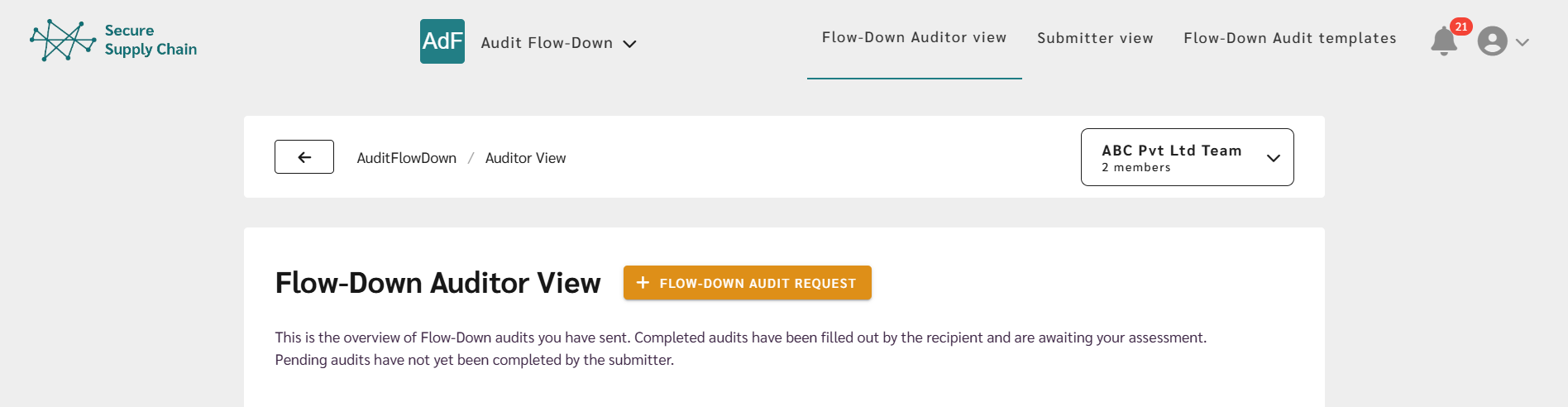
On the Orixe dashboard, click the Audit Flow-down module.

1. Getting started

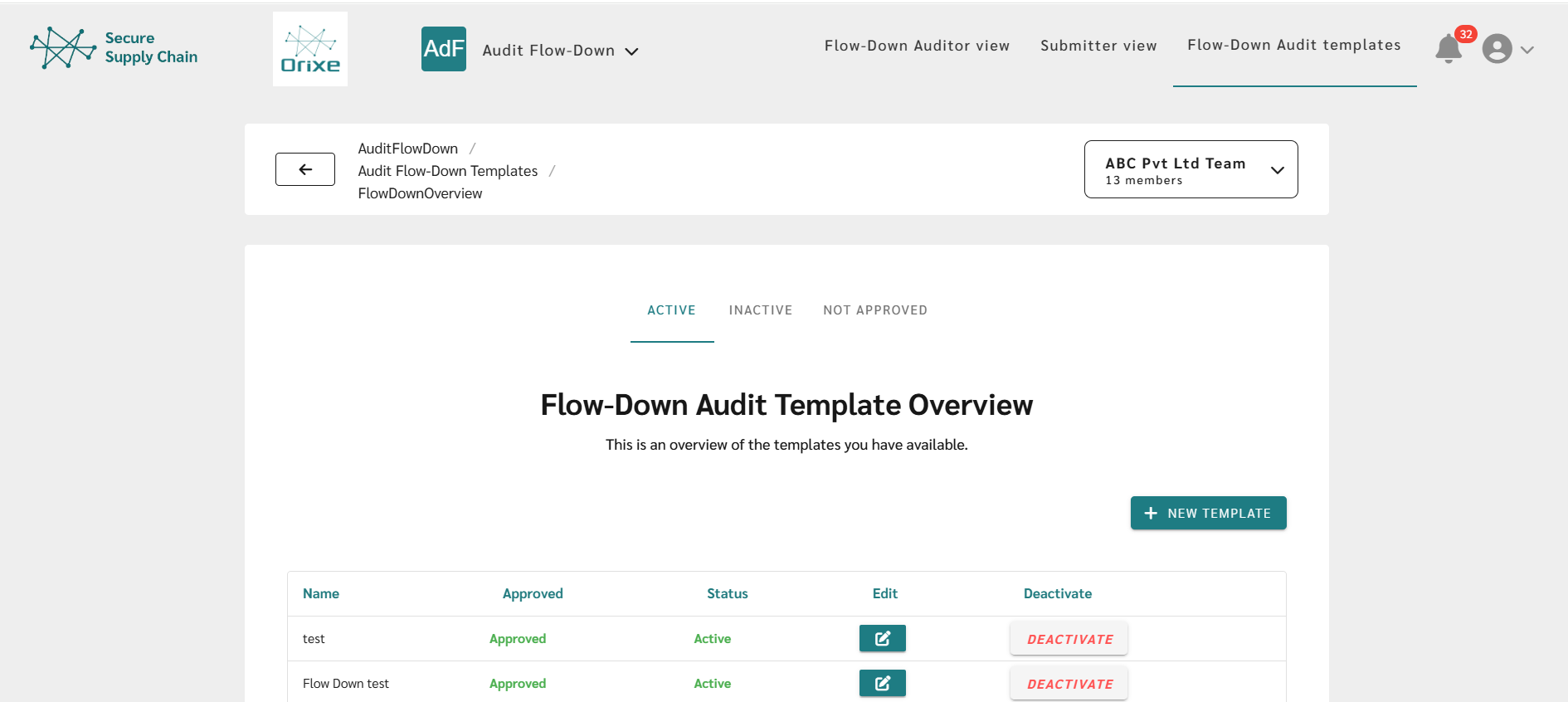
  • The top menu of the Audit Flow-down module shows the following functions: Flow-down Auditor View, Submitter View and Flow-down Audit Templates.

2. Creating a new template

  • To get started with the Audit Flow-down module, you will first need to create an flow-down audit template.
  • To create a new template, click the “Flow-down Audit Templates” tab in the top menu.
  • The template site will now appear. Click the “New Template” button.
  • Type a template name in the “Template name” field and then click the “Add Question” button.
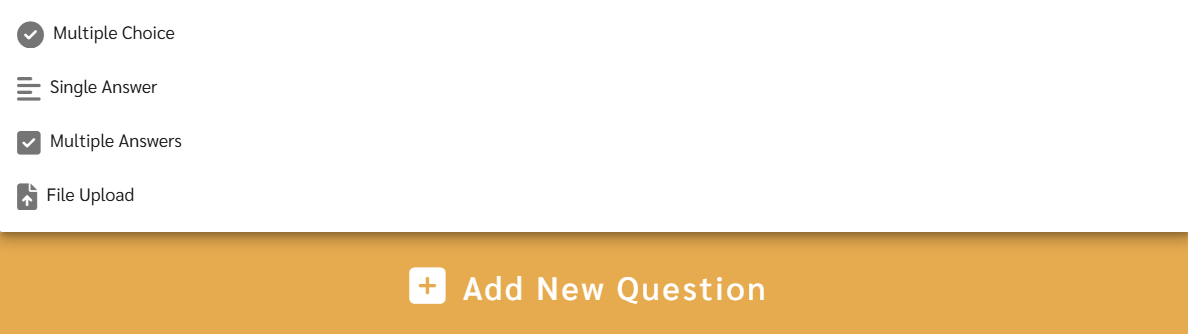
  • Choose the answering format best suited for your question.
  • Remember to click “Save” regularly during the process, and before exiting the site, in order to save the progress you’ve made so far.

3. The different question formats

There are four different question formats.

3.1: The "Title", "Attachment" and "Spacer" functions

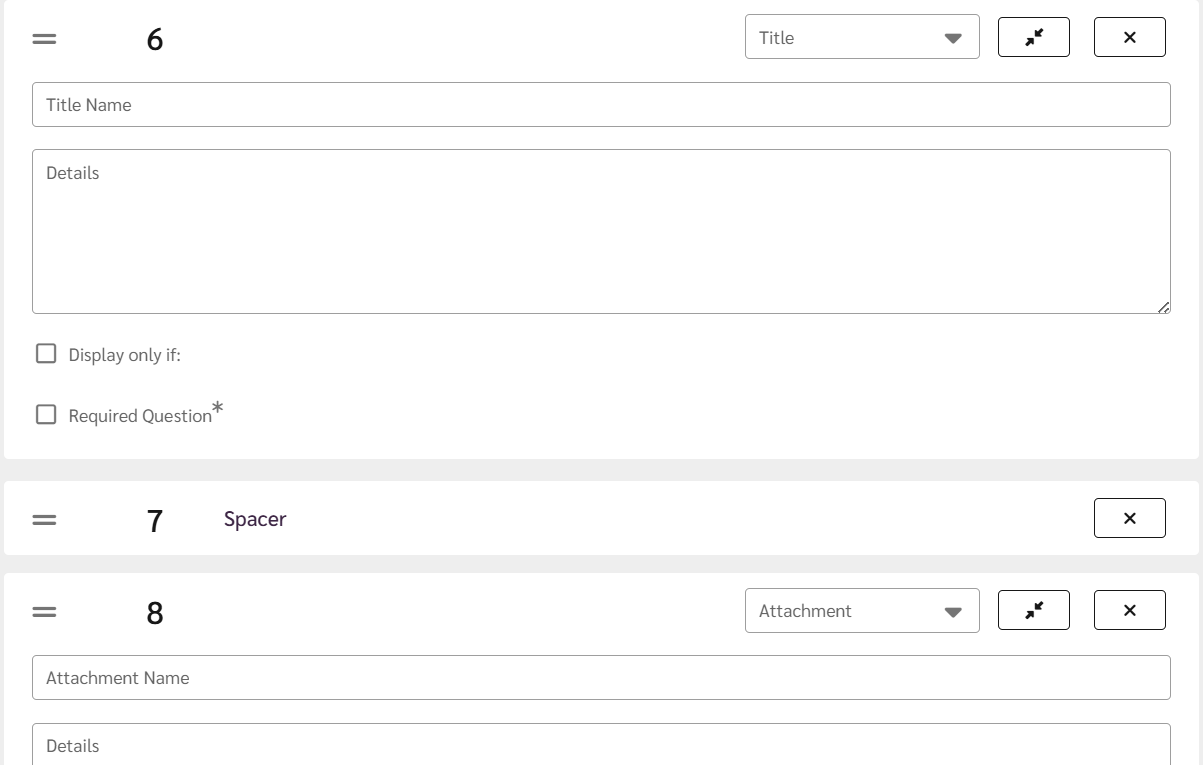
  • The “Title” function allows you to apply a title to your audit, or sub-titles to specific parts of the audit.  
  • The “Spacer” function creates a space between the fields it is placed between.
  • The “Attachment” function allows you to attach files to your audit, for the supplier to download and read.

3.2: The "Multiple Choice" question format

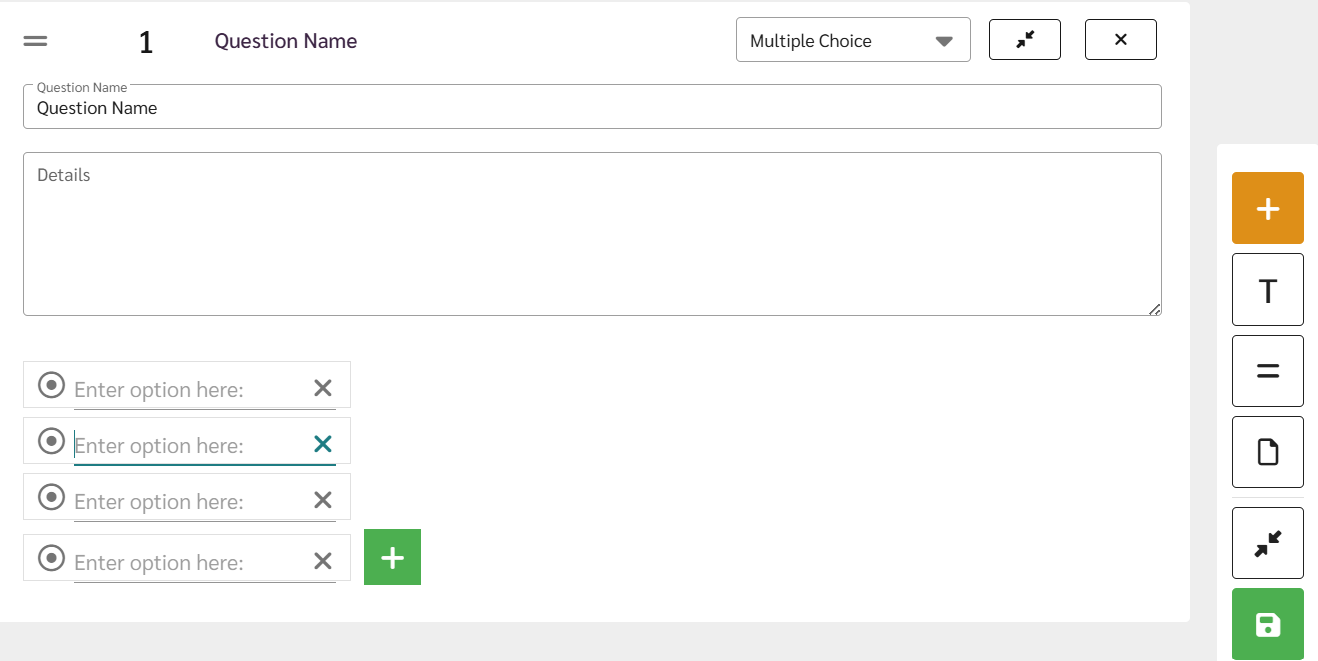
  • Write your question and any details required.  
  • Add the different possible answers in the field named “Answer Possibilities”. With the “Multiple Choice” question form, the suppliers will be able to pick one of the alternatives that you set.
  • Click the + button to the top right of the question box to add a new question to your Audit.

3.3: The "Multiple Answers" question format

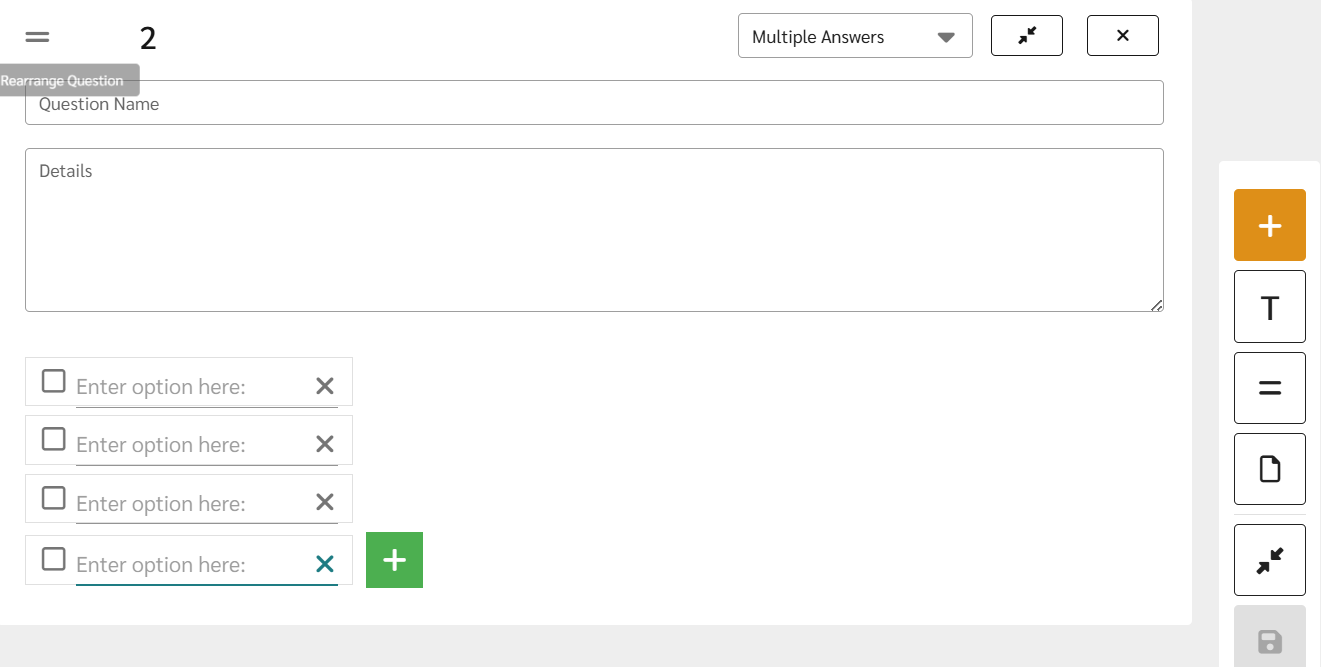
  • Write your question and any details required.  
  • Again, type in the possible answers. With the “Multiple Answers” function the supplier will be able to choose multiple answers. This is similar to the “Multiple Choice” function, except that the supplier can choose more than one answer.

3.4: The "Single Answer" question format

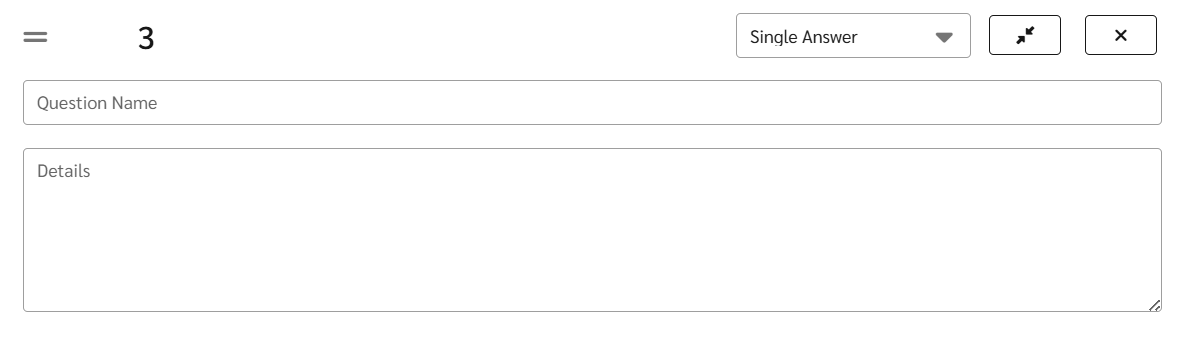
  • In this function your suppliers will be able to freely type in their answers.

3.5: The "Upload File" question format

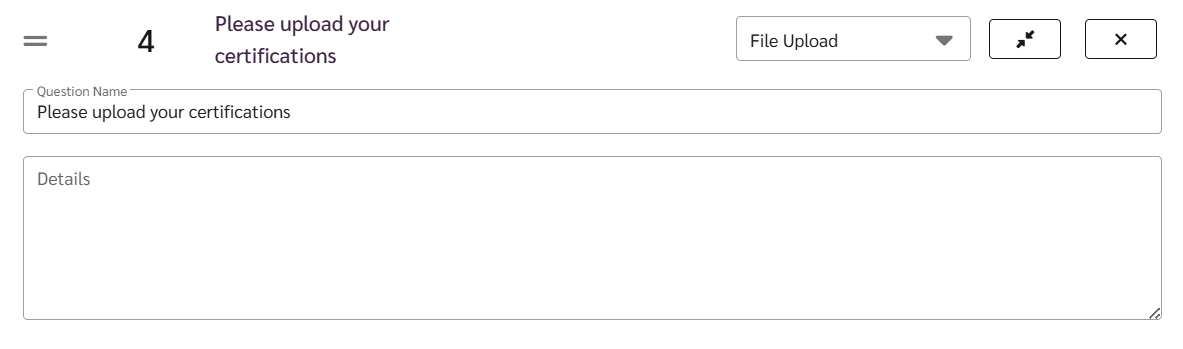
  • The “Upload File” format allows your suppliers to upload files.  


4. Preview and save

  • It is recommended to regularly save your flow-down audit. After saving the flow-down audit, you can press the Preview Template button.  
  • The preview function allows you to preview your audit as your supplier would see it.


5. Sending the audit

  • When you have completed the creation of a flow-down audit template, press save. 
  • Once saved, get the flow-down audit approved. Keep in mind that only users with the Audit Approver role can approve audits.
  • Next, click the Flow-down Auditor View button in the top menu.
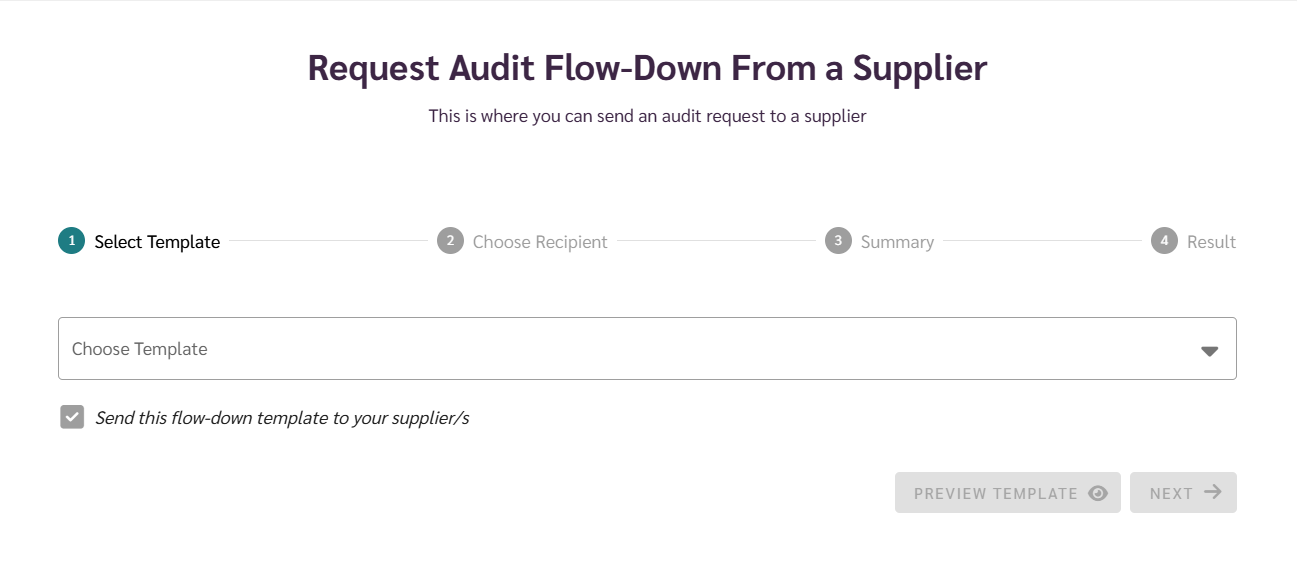
  • Click “Flow-down Audit Request”.  
  • Choose a template. At this stage, only approved existing templates will appear, including the one you just created.
  • Two alternatives should now appear, either to choose an existing supplier, or to add a new supplier (see 5.1 below).
  • Both alternative will lead you to the “Summary” view, where you should click “Send request”.
  • Congratulations, you have just sent your first flow-down audit with Orixe Audit!

5.1: Adding a new supplier

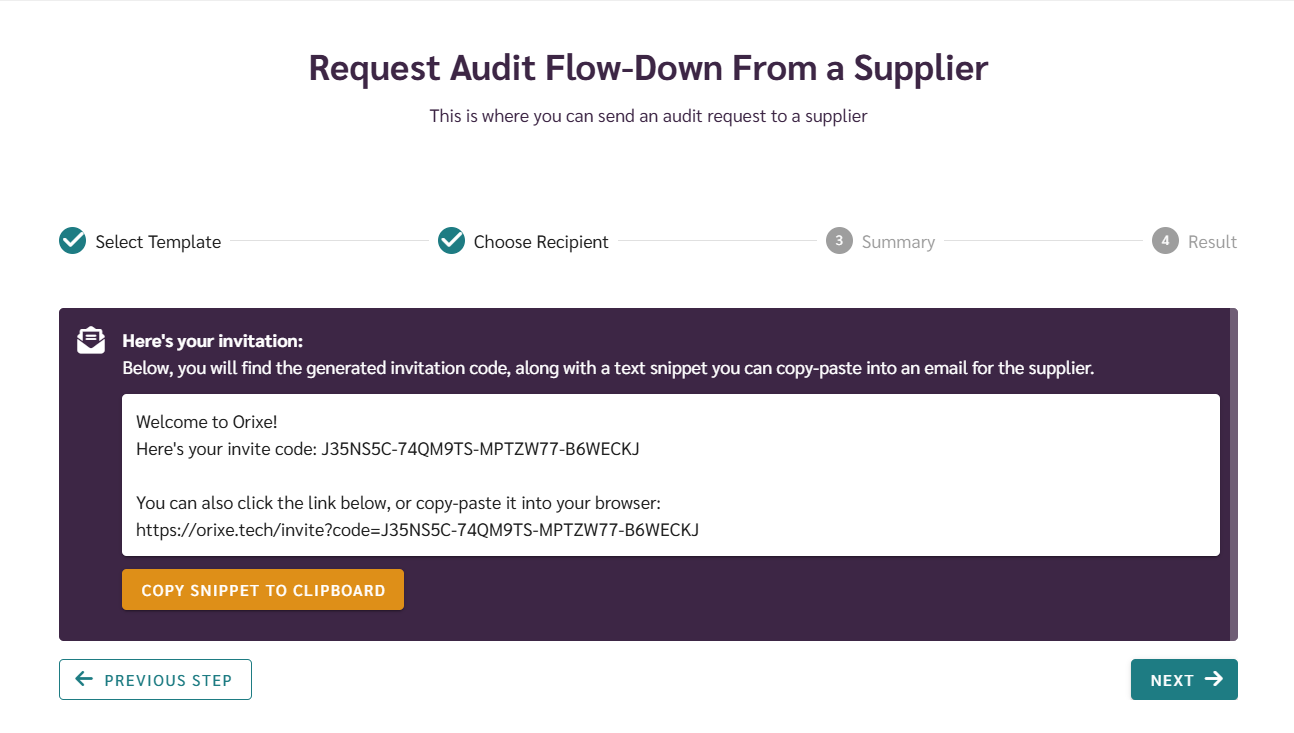
  • If you choose to add a new supplier in step 5, a window should pop up for you to generate an invite code.
  • Type in the name of the supplier, and then pick an expiry date. The expiry date decides how long the invite link will be valid for.
  • Orixe Flow-down Audit will now generate an invite code, simply click “copy the snippet to clipboard“, then paste it into an email and send it to a supplier.
  • You’ve now added a new supplier to your Orixe connections!
  • Click “Continue” in the lower left of the screen to be taken to the “Summary” page, click “Send request” for your audit to be sent to the supplier.
  • Congratulations, you have just sent your first flow-down audit with Orixe Flow-down Audit to a new supplier!
Orixe logo

📞
orixe@orixe.no
+46 760072566, WhatsApp
Nääs Fabriker, Gothenburg