By clicking “Accept All Cookies”, you agree to the storing of cookies on your device to enhance site navigation, analyze site usage, and assist in our marketing efforts. View our Privacy Policy for more information.
How to submit a Flowdown Audit and forward it to sub-supplier
When a buyer sends you a flow-down audit, the submission process depends on whether you already have an Orixe account or not. Follow the relevant steps below.
1. If You Are New to Orixe (Not Registered Yet)
If this is your first time using Orixe, you’ll need to register before you can complete the flow-down audit.
Open the email you received from the buyer.
Click the link in the invitation snippet within the email.
Create your company account on the Orixe platform and complete the registration process.
After registration, the connection with the buyer is created automatically.
You may receive a notification saying:“[Buyer’s Company Name] has sent you an audit to fill out.”
Click on the notification. You will be redirected to the flow-down audit page.
Complete the flow-down audit form and submit it.
2. If You Are Already an Orixe User
If you already have an Orixe account, you can access the flow-down audit directly from the platform.
When a buyer sends you a flow-down audit, you will receive a notification.
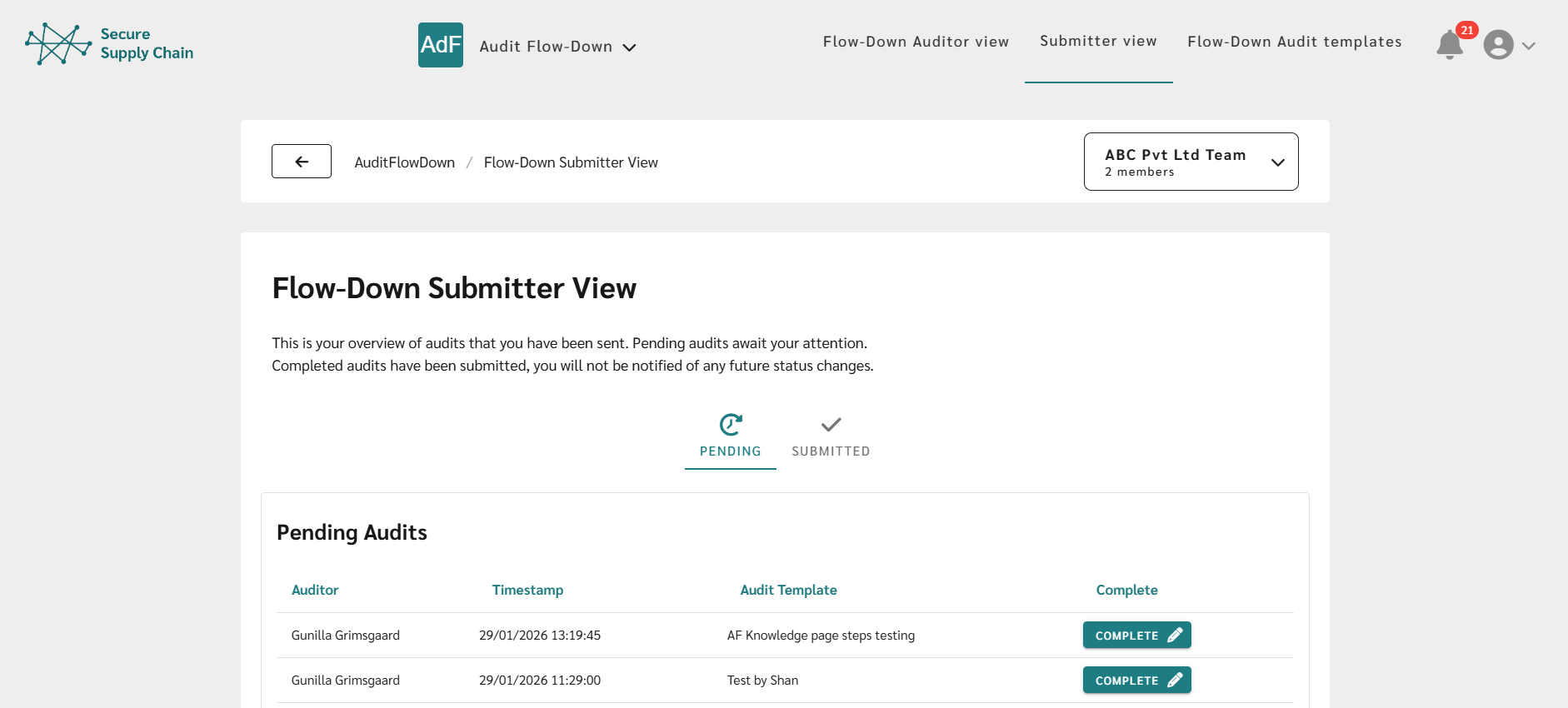
Click the notification to be directed to the flow-down audit page or go directly to the Submitter View.
In the Pending tab in Submitter View, You will see the flow-down audits you’ve received, with the most recent ones listed at the top.
Click Complete on the relevant audit.
Fill out the flow-down audit form and click Submit Audit when finished.
Saving Progress
If you are unable to complete the flow-down audit in one session, click Save.
Your answers will be saved, and you can return later to complete and submit the flow-down audit.
⚠️ Important: Once the flow-down audit is submitted, you will not be able to change your answers.
3. Forwarding the Audit to Sub-Suppliers
After submitting your flow-down audit:
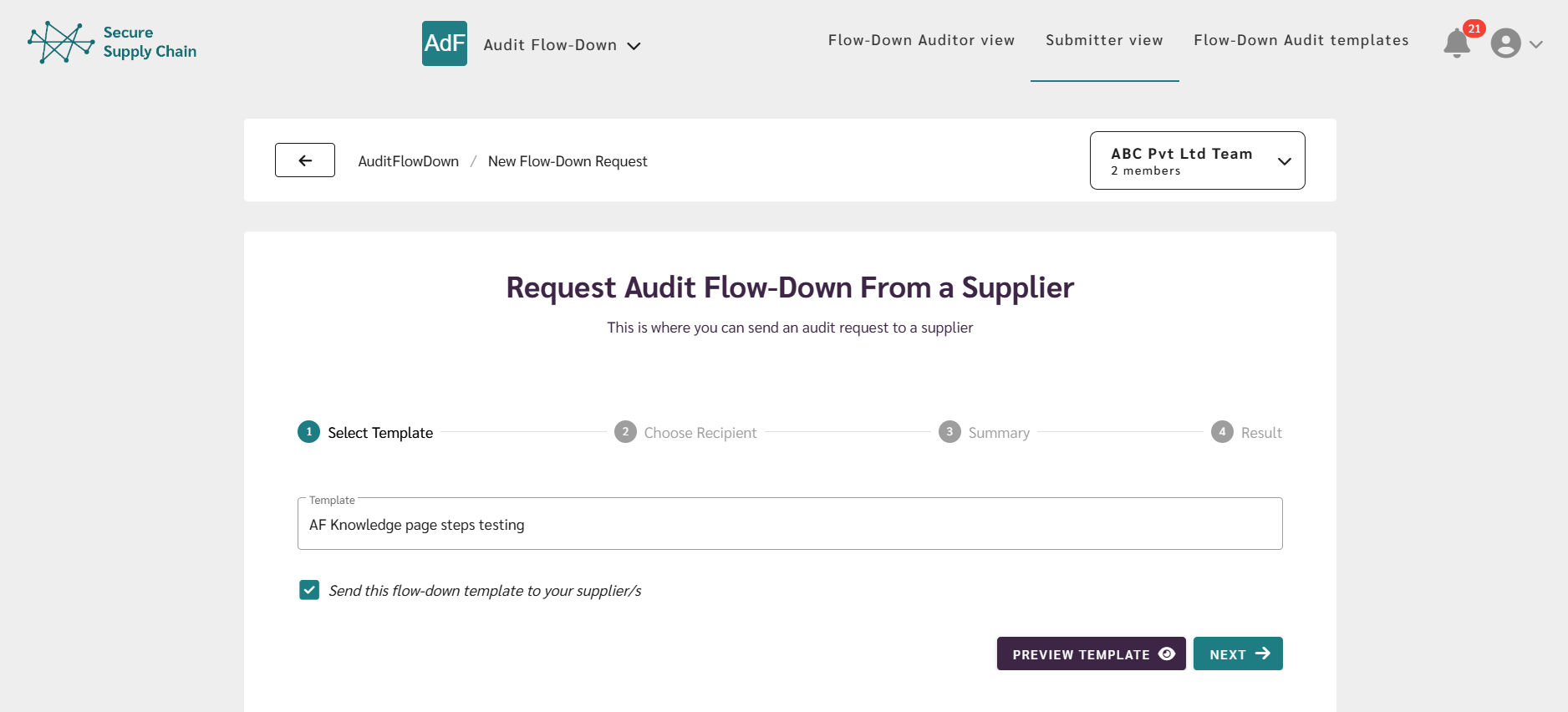
You will be directed to a page where you can forward the audit to your sub-suppliers.
Your completed flow-down audit will be automatically selected and click Next.
Select an existing supplier or add a new supplier and forward the flow-down audit.
Alternatively:
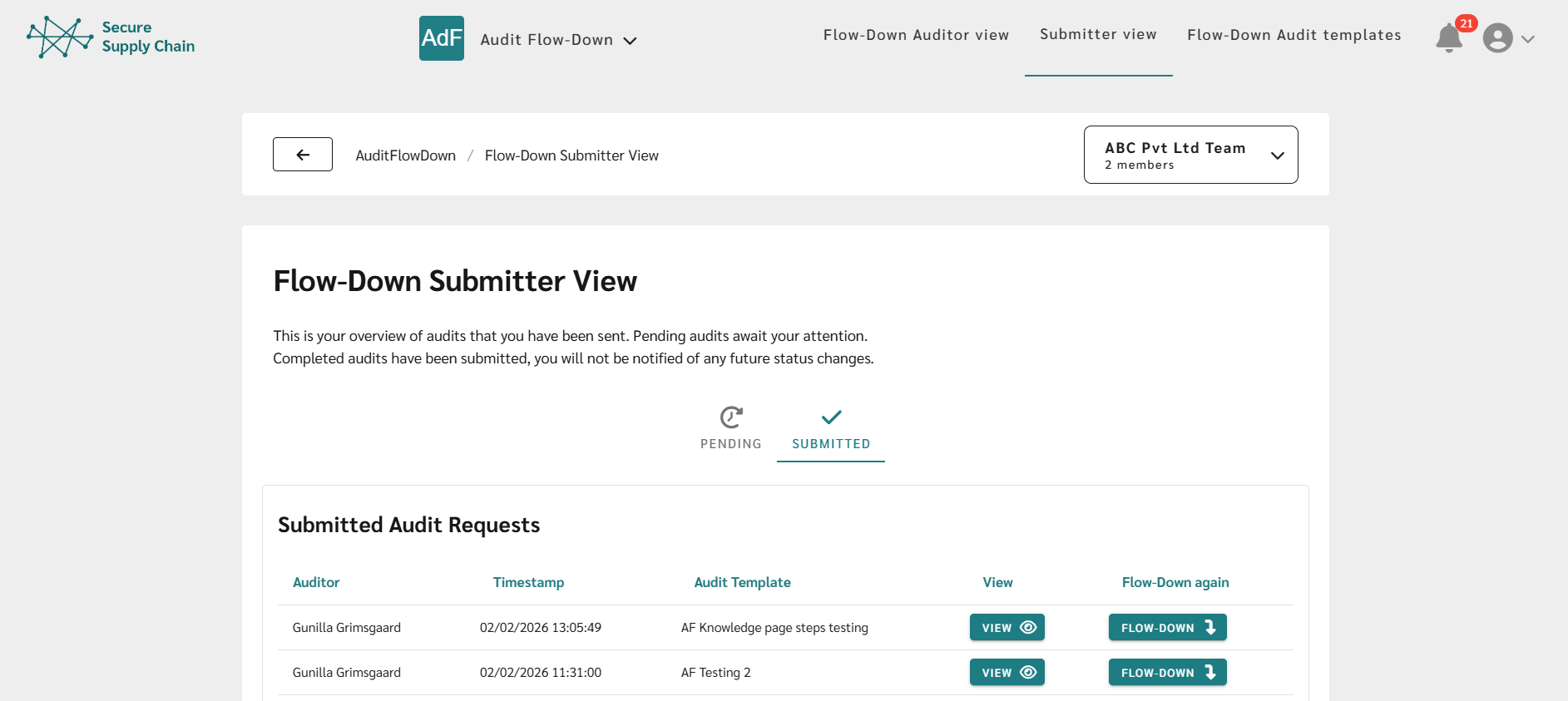
Go to the Completed tab in the Submitter View, locate the relevant flow-down audit, and click 'Flowdown Again' to forward the audit to your sub-suppliers.
4. Flow-down Audit Status After Completion
Once the process is completed, the flow-down audit will be moved from the 'Pending tab' to the 'Submitted' tab in the Submitter View.